Plugin overview
Plugins add functions to Tickessa. Use Customer portal → My plugins to manage acquired products, downloads and update periods. Settings → Plugins in the ticket system lists the integrations installed there and their local settings. This area requires administrator access.
| Plugin | Purpose | Setup and settings |
|---|---|---|
| Joomla account cleanup | Connect a Joomla website to a support project and handle approved cleanup requests from tickets | Install the Joomla extension; assign the connection and project under Settings → Plugins → Joomla account cleanup → Open settings |
| Tickessa Local AI | Process approved AI tasks on your own Apple Silicon Mac | Install the Mac service; configure the connection, models and project permissions under Settings → AI providers → Tickessa Local AI |
Joomla project management is included from Tickessa 0.15.4. The complete workflow documented here—account search, reversible cleanup, bounded progress, direct ticket links and automatic status synchronisation—requires Tickessa 0.15.17 and Joomla account cleanup 0.6.2. Use only downloads released for your account. A successful connection test does not authorize account cleanup.
Where to manage each part
- Customer portal: purchases, download access, update periods, renewals and website connections. See Customer account and downloads.
- Ticket system: Joomla project assignment, connection tests and ticket operations. The support integration ships with the normal Tickessa package; no second connection plugin needs installing.
- Joomla: install the Joomla ZIP and pair it using the Joomla setup key. Cleanup operations run on the Joomla website.
- Local AI computer: install and operate the local AI service. Its configuration belongs in the AI provider area, separate from Joomla settings.
Acquiring a plugin does not install software on its target system. After adding it to your account, follow the plugin's installation guide.
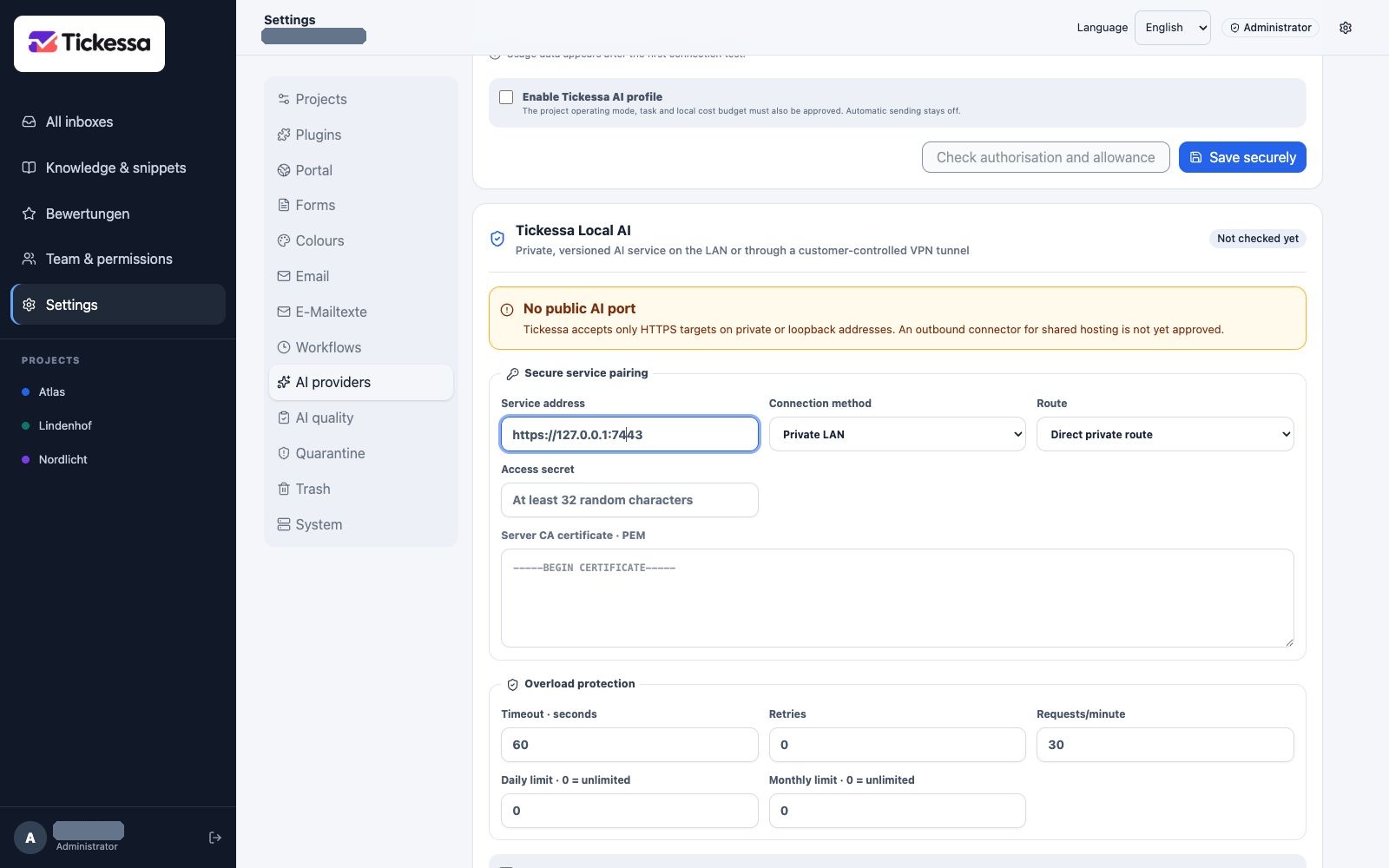
Prepare the local AI connection and its project routing separately.
Before updating
Read the package release notes, back up the affected systems and verify the published checksum. Install a version approved for your system and account. Test the connection again after updating.