Customer account, downloads and update periods
Sign in to the Tickessa customer portal and open My plugins. Select an acquired plugin to view its details.
Understanding the details
| Field | Meaning |
|---|---|
| Acquired | The plugin belongs to your account. Set up its software separately on the target system. |
| Usage | How long you may use the acquired version. |
| Updates until | The period covering access to new eligible package versions. |
| Unlimited | This entitlement has no time limit and does not require renewal. |
| Downloads | Only packages released for your account are offered. Beta or restricted downloads may require separate access. |
For products with perpetual usage, an expired update period does not stop the installed version from working. Optional renewal covers new updates. Current prices and available renewals appear in the store or product details; consult your account for your entitlement.
Download and install
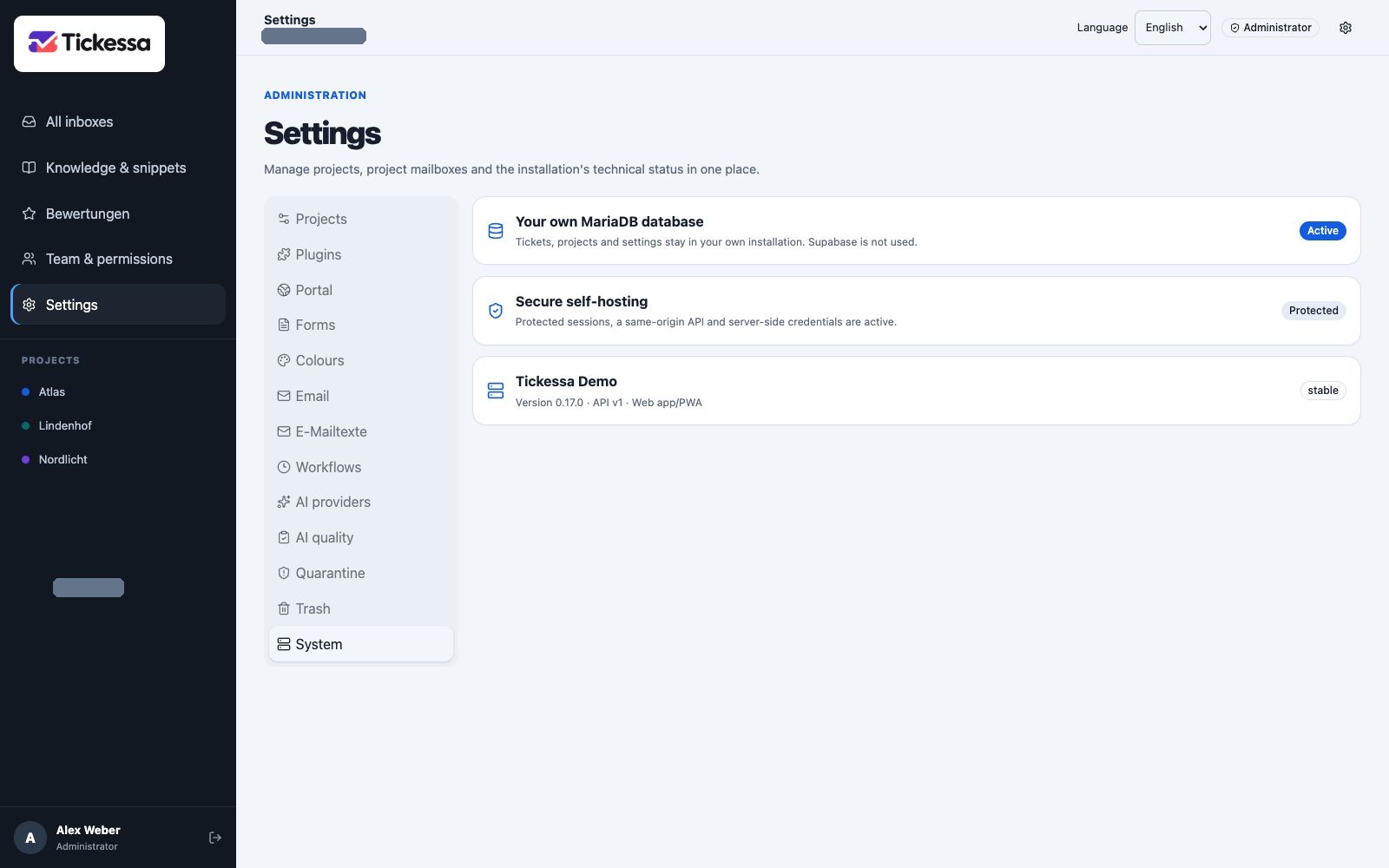
System shows the version and technical status of the installation you are using.
- Open the plugin details and choose an eligible package.
- Verify the downloaded archive against its published checksum.
- Follow the Joomla or Local AI guide.
- Test the connection in the ticket system after setup.
If your account offers Install instead of a purchase button, that action adds the entitlement to your account. It does not install software on Joomla or your Mac. For an existing entitlement, Open in account opens the details.
Joomla connections
Create a connection using a descriptive name and the HTTPS base addresses of the Joomla website and ticket system. Use the actual base addresses, without login paths or query parameters.
Two different setup keys are displayed once: one for Joomla and one for the ticket system. Initial pairing must happen within 24 hours. Keep the keys private; do not paste them into tickets, emails or screenshots. After successful pairing, the connection continues beyond this setup deadline.
Assign the project in Ticket system → Settings → Plugins → Joomla account cleanup → Open settings. The confirmed project name then appears in the customer portal. Until a name has been sent, an internal project number may appear; save the assignment again in the ticket system to synchronize the name.
Test connection checks the configured Joomla integration. Its result applies to the displayed test time. Revoke prevents further remote commands through that connection; it does not delete existing tickets or uninstall software. Reconnecting requires a new connection and new keys.
Troubleshooting
- Missing download: Check the account, product entitlement and update period. Renewal alone does not grant access to a restricted beta.
- Expired setup key: Create a new connection and pair both systems using its matching keys.
- Outdated project name: Open the project settings in the ticket system and select Save and sync project.
- Old interface after an update: Fully reload the customer portal and ticket system, then reopen the plugin details.