Create and publish knowledge articles
An article records reusable, expert-reviewed information: instructions, a known limitation or a frequent solution. It is not a single ticket or internal note and should remain understandable without reopening the original conversation.
Tickessa stores articles per project, or across projects when created by an administrator. Every content change creates a version, preserving earlier texts, reviews and publications.
This workflow remains current in the 0.15.17 handbook. Internal knowledge management is available. Public articles require article approval, an enabled project portal and global portal/FAQ switches. Public switches remain off on the reference installation.
Article, snippet or internal note?
| Content | Suitable for | Public? |
|---|---|---|
| Knowledge article | Lasting facts, instructions and reviewed solutions | Only with public audience, expert approval and explicit publication |
| Reply snippet | Reusable reply wording | No; helps writing but sends nothing |
| Internal ticket note | Case-specific handovers and observations | No |
| Knowledge candidate | Anonymised suggestion from a reviewed conversation | No; initially a working draft |
Permissions
Viewers read knowledge in assigned projects. Agents create drafts and versions in their projects. Administrators additionally create cross-project articles, approve, publish and archive. The server enforces these permissions independently of visible buttons.
Before creating an article
Check whether the information is reusable, which project it applies to, and whether it may be public. A one-off case belongs in its ticket. Select a concrete project when content, product version or language is project-specific. Confidential background belongs only in Internal notes, never Publicly usable content.
Create an article
- Open Knowledge & snippets.
- Select Knowledge article.
- Complete the fields below.
- Select Create draft.
- Check the article list: version 1 is Review pending and unpublished.
Saving publishes nothing. Even Public audience requires an administrator to approve and then publish exactly that version.
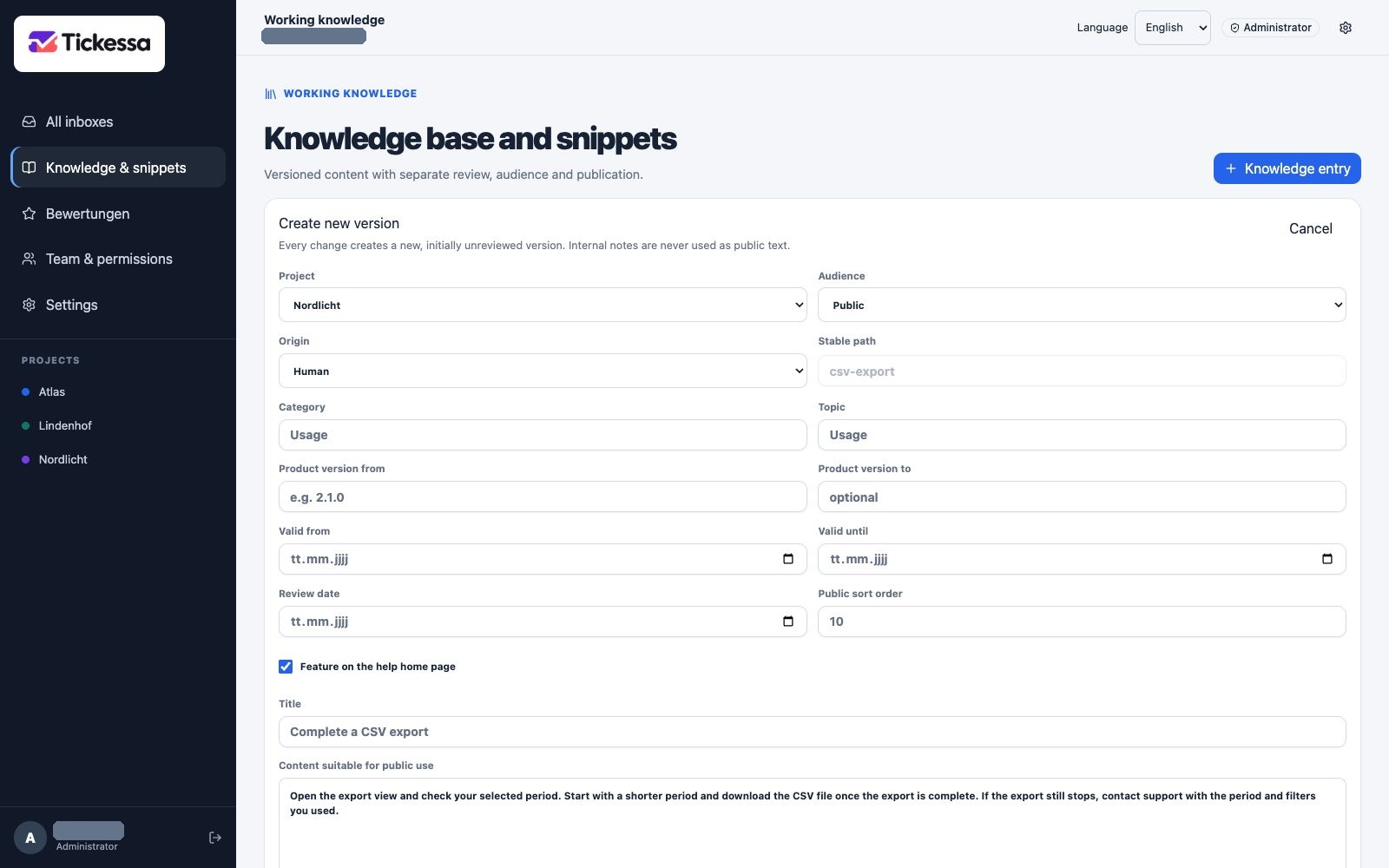
Maintain the project, audience, validity and title on the article. This example opens a new version of an existing article.
Field guide
Project
The project establishes both subject-matter and access boundaries. Project knowledge is offered only to authorised users and that project's AI, never as another project's source. Across projects is administrator-only and should contain information that applies unchanged everywhere.
Audience
Internal supports work inside Tickessa and cannot appear publicly. Public permits publication after approval; selecting it is not publication. When uncertain, choose Internal. Changing audience requires a new reviewed version.
Origin
Human means a person wrote the content. AI-assisted means AI helped while a person substantially reviewed or edited it. AI-generated means the initial text came mainly from AI. Origin records provenance, not quality; all versions require expert review.
Stable path
The permanent lowercase article identifier, for example reset-sign-in, accepts a–z, digits and hyphens. It may become part of a public URL and cannot change after creation. Avoid version names, dates and personal data; put content changes in new versions.
Category
Groups related articles, such as Getting started, Account or Billing, and can filter public knowledge. Use consistent spelling within a project.
Topic
Describes the subject more precisely, such as Password within Account. It helps search, mapping and subsequent AI selection.
Product version from and to
Use only reviewed boundaries. From is the earliest applicable version; To the latest. Leave both empty when no limit is known. Knowledge outside a ticket's product version is excluded as a supported AI solution.
Valid from and until
Before the start date, the article is Not yet valid; after the end, Expired. Such versions should not support current answers. Use dates for temporary processes, offers or transition arrangements.
Review date
This schedules expert rechecking. Review due appears when the date passes without automatically changing or republishing the article. Use it for changing prices, external processes, legal notices or product functions.
Public order
Lower numbers appear earlier. Order does not alter approval or visibility. Values such as 10, 20 and 30 leave room for future articles.
Feature on the help homepage
Marks an article for prominent display only when exactly this public version is published and public knowledge is enabled.
Title
Clearly name the question or solution, such as “Reset your password safely” or “Download an invoice as PDF”. Avoid ticket numbers, customer names and vague titles like “Problem”.
Publicly usable content
This is the text customers may see for a public article. For internal articles it is also the clean, reusable main text for search and AI. State the problem first, explain prerequisites and affected versions, list steps in order, describe limits and necessary questions, and exclude passwords, keys, internal URLs and identifying case details. Use factual statements instead of unverified promises.
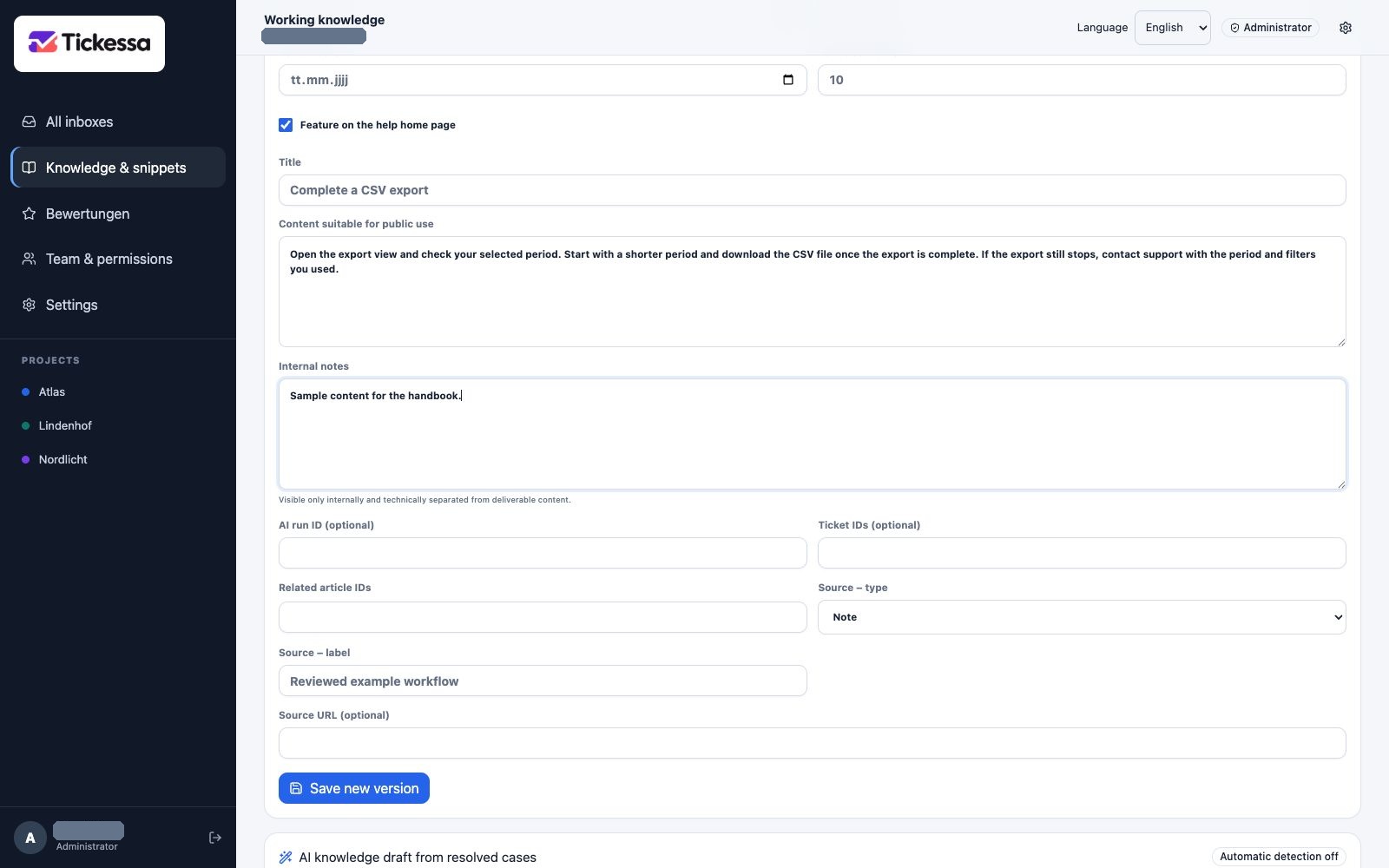
Publicly usable content, internal notes and source details have separate fields.
Internal notes
Record team-only background separately. It is never delivered publicly and must not replace information customers need in the public text.
AI run ID
Link the actual generating run for traceability, or leave empty. Never guess a run ID or use another project's run.
Ticket IDs
Comma-separated source ticket IDs remain internal and do not publish the article. Use only tickets in the same project and remove identifying details from the main content.
Related article IDs
Related articles guide readers to complementary solutions. Public links appear only when the related article is public, approved and published for the same project.
Source type
Note records an internal expert finding; URL identifies a verifiable webpage; Document names a manual, policy or other source. Type helps review but does not replace it.
Source label
Use a meaningful description, such as “User manual, sign-in chapter”, rather than “Link”.
Source URL
Optional. Use the actual checked source, with no access tokens, personal parameters or secrets. Tickessa does not automatically open it.
Review and publish
- Create draft saves a pending version.
- An administrator checks content, audience, origin, sources, validity and internal notes.
- Approve marks exactly the current version as reviewed.
- Publish selects that approved version as the public version.
Request revision marks a pending version as needing work; New version then creates its replacement.
Approval confirms a version's correctness. Only the separate Publish action makes a public version visible in an enabled portal.
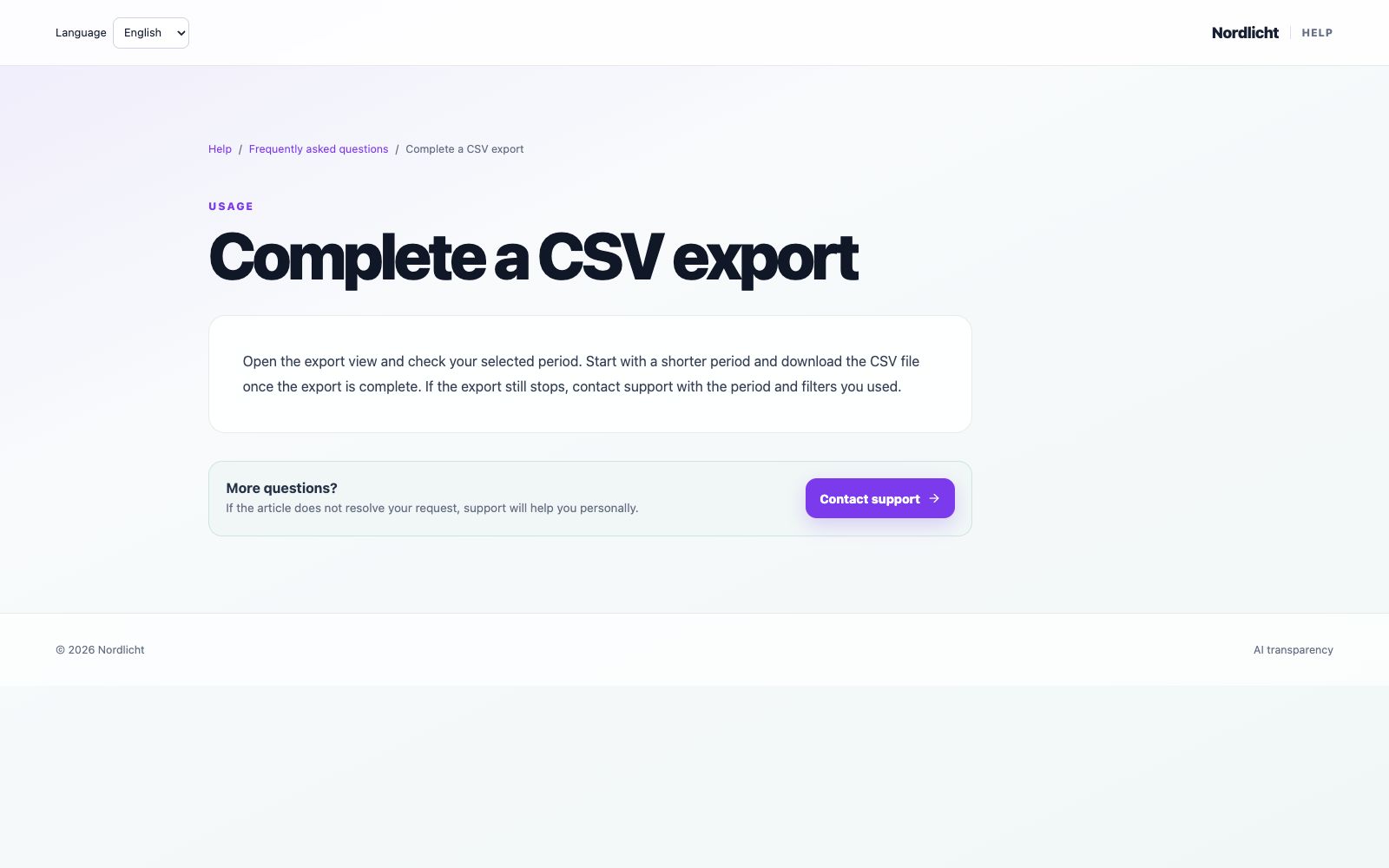
Visitors see the published version with practical steps and a route to support.
Change a published version
New version copies editable fields into a draft while the existing version stays online unchanged. Only approval and publication of the new version replace it. This prevents small unreviewed edits from overwriting approved content.

The overview distinguishes published versions from drafts; reply snippets have their own area.
Labels and warnings
| Label | Meaning | Next action |
|---|---|---|
| Review pending | No expert decision yet | Review and approve or request changes |
| Approved | Current version reviewed | Publish if appropriate for its audience |
| Revision needed | Corrections requested | Create a new version |
| Online: version … | Version currently used publicly | New drafts do not change it |
| Not yet valid | Start date is in the future | Check date and content |
| Expired | End date has passed | Create a new version or archive |
| Review due | Planned review date reached | Review again |
| Conflicting content | Validity or relationships are inconsistent | Correct and review a new version |
Archive
Archive removes the article from public selection while retaining versions and event history. Use it for permanently obsolete content; use a new version for corrections.