Install and update Tickessa
This guide applies to the web package from version 0.13.0. Prepare the download on a Mac, Windows PC or Linux computer; Tickessa itself runs on your web server and is used in a browser.
Which package do I need?
| Route | Package | Preparation |
|---|---|---|
| Your web hosting, FTP/FTPS or SFTP | Tickessa web ZIP | Domain, HTTPS, empty database and file access |
| Your server with SSH | The same web ZIP | Domain, HTTPS, database, PHP and web server |
| Hosting by Tickessa | A provisioned customer environment | Connect your domain/DNS after receiving access |
| Local AI | Separate Apple Silicon package | Download edition, purchased Local AI plugin, suitable Mac and private connection |
Hosted customers receive the application and access details from Tickessa without an additional application download. Timme and mittwald use the same web package; provider credentials belong only in the Tickessa administration system.
Local AI is available as an additional paid plugin for the download edition. Hosting plans are not eligible. The purchase includes one year of plugin updates and unlimited use of entitled versions. Additional update years are optional; previously entitled releases remain downloadable. Plugin and main-application update periods are independent.
1. Download and verify
Sign in to konto.tickessa.de. The download list shows releases entitled to your account. New releases depend on your update entitlement; older entitled versions remain in the archive. Compare the ZIP SHA-256 checksum with the customer account before extracting or running it.
- Mac Terminal:
shasum -a 256 tickessa-0.15.17.zip - Windows PowerShell:
Get-FileHash .\tickessa-0.15.17.zip -Algorithm SHA256 - Linux:
sha256sum tickessa-0.15.17.zip
If the checksum differs, do not use the file; download it again. The server assistant also checks the publisher signature and contained files. A key shipped in an arbitrary ZIP is not automatically trusted as the publisher.
2. Prepare the server
- A dedicated empty MySQL/MariaDB database and a user authorised only for it.
- PHP 8.2–8.5 with PDO, pdo_mysql, mbstring, OpenSSL, fileinfo, DOM, Sodium and ZIP. Automatic update downloads additionally require cURL.
- Argon2id password support; IMAP additionally for email retrieval.
- Intended database families: MariaDB 10.6–11.x or MySQL 8.0/8.4. The release notes list combinations actually tested for that download.
- A valid HTTPS domain. A reverse proxy must convey HTTPS through trusted server configuration; a visitor-supplied forwarded header is insufficient.
- Browser updates need enough PHP upload, memory and execution capacity:
upload_max_filesizeat least the package size, a largerpost_max_size, 256 MBmemory_limitand sufficient time during maintenance. - Private free space for the package, complete backup and extracted recovery copy. Use SSH for large installations.
3. Upload over FTP/FTPS or SFTP
- Extract the ZIP locally. Built-in Windows/macOS archive tools or Linux archive tools/
unzipare sufficient. - Upload the entire extracted directory, including hidden files. Use SFTP or encrypted FTPS where supported.
- Set the domain document root to public/. private/ and files beside public/ must not be publicly accessible.
- Generate a random setup key of at least 24 characters in your password manager. Save it as the only line of the plain-text file private/app/setup-key.txt. Do not reuse another credential.
- Restrict private files to the web-server user, typically mode 600, and private directories to 700. Never grant blanket 777 permissions. Public files must be readable by the web server; your host defines ownership and groups.
- Apache uses the supplied
.htaccess. For Nginx, the server administrator adaptsnginx.conf.examplewith the domain, paths and TLS configuration.
If your host cannot use public/ as a separate document root, have the host establish safe directory separation before following these steps.
4. Browser setup
Open https://your-domain.example/install.php and enter the personal setup key. Only then does the assistant open for your browser. It asks for the domain, instance name, database, first administrator and first project. Credentials stay on your server and are not stored in your Tickessa customer account.
The installer rejects a nonempty database. After successful setup, initial installation is locked and the key file is removed. Save the once-displayed cron username/password in your password manager. Sign in as administrator and configure your mailbox and host's cron job. AI, public portals and automatic sending require separate activation.
Interrupted initial installation
Before database changes, retry in the same browser. Browser access expires after one hour; the personal key remains necessary until setup succeeds.
If tables were already created before interruption, another initial installation remains blocked. Use a new empty database or ask your administrator to reset only the database positively identified as this incomplete new installation. Never delete tables belonging to an established installation. Update an existing Tickessa installation through the update assistant.
5. SSH installation
Transfer the ZIP with SCP/SFTP or download it to your computer first. Verify its checksum, extract into a new directory and set public/ as the webroot. The browser assistant remains the simplest setup route even when SSH is available. Generate the personal key on the server with:
php private/app/bin/setup-key.php
Alternatively, prepare a private JSON file outside the webroot using the fields in INSTALLATION.en.md:
chmod 600 /safe/path/installation.json
php private/app/bin/verify-release.php
php private/app/bin/install.php /safe/path/installation.json
Delete that configuration file afterwards. Passwords must not appear in command arguments, shell history or support messages.
6. Updates from version 0.13.0
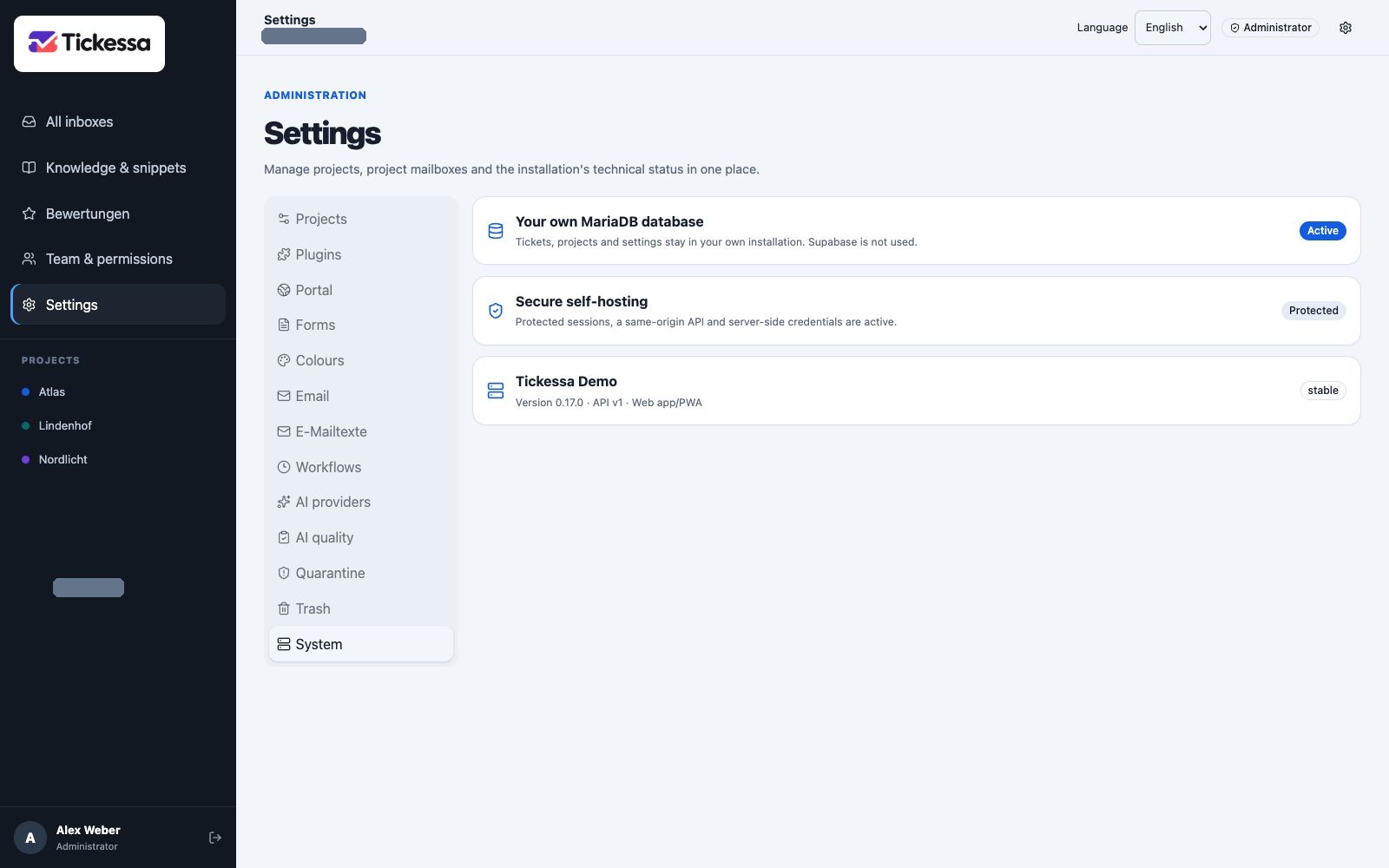
System shows the version and technical status of the installation you are using.
From version 1.0.0, Tickessa displays the installed version beside the language selector. Green means current, while red means that a newer stable release has been confirmed securely. Grey means the version service is temporarily unavailable; it does not imply that the installation is outdated. Clicking the version opens the administrator-only update area inside the familiar Tickessa interface. Sidebar, top bar, language selector and user context remain visible. The embedded assistant still comes from the same installation and cannot be framed by a foreign domain.
For automatic downloads, copy the installation ID from that assistant into Connect automatic updates in your Tickessa customer account. Enter the access value shown once back in the update assistant; it is encrypted locally with the installation key and bound to the installation, customer account and active update entitlement. A licence change requires a new access value. For a paid product, the download consent must have been recorded once in the customer account before the first automatic download.
The automatic route still requires deliberate administrator confirmation and the encrypted backup password. Tickessa downloads only from the fixed customer-portal origin, then independently verifies SHA-256, publisher signature, file list, version and server requirements. The offline runtime licence is not replaced by a mandatory portal heartbeat; a portal outage does not lock an installed version. Manual signed ZIP upload remains the independent fallback.
- Download an entitled new ZIP from your customer account and verify its checksum.
- Read the release notes, plan a maintenance window and pause cron.
- Sign in as an administrator and select the version number. The direct emergency route
/update.phpremains available if the application interface cannot load after an interrupted update. - Select the ZIP and choose a strong backup password with at least 16 characters. Store it separately in your password manager; it is not saved on the server.
- Start verification, backup and update. Tickessa blocks new API and cron requests during the update and waits for existing requests to finish.
- Check login, the ticket list and attachments, then resume cron.
For a low browser upload limit, upload the unchanged ZIP using FTP/SFTP to private/app/storage/updater/package.zip and select the corresponding option in the assistant. Never extract an update over the running files.
The package is verified before changes. Versions and requirements must match; equal or older versions are rejected. The encrypted backup includes database, program files, configuration and attachments. APP_KEY, accounts and other settings are retained. A recoverable error restores the previous files and database; sessions are terminated during recovery.
The .backup file is stored under private/app/storage/updater/. Copy it using SFTP to separate secure storage and protect its password separately. A backup on the same server does not protect against server loss.
Interrupted update
If maintenance remains active after a process interruption, reopen /update.php and choose recovery with the update backup's password. If you cannot sign in, use server file access to create a new random private/app/setup-key.txt of at least 24 characters. The recovery page then requires both that key and the backup password. The key is removed after recovery. An incorrect password changes neither files nor database.
Over SSH, supply the backup password from a private file:
php private/app/bin/update.php apply /safe/path/tickessa-new-version.zip < /safe/path/backup-password.txt
php private/app/bin/update.php recover < /safe/path/backup-password.txt
Versions before 0.13.0 need the assisted transition in UPDATE.en.md: file and database backup, migration and webroot switching. Do not simply copy the new ZIP over an older installation.
7. Diagnosis and support
The assistants show a diagnostic identifier. The private private/app/storage/updater/events.jsonl records only the operation identifier, step and time. Server error reports use fixed error codes instead of submitted passwords, database error messages or ticket content.
Give support the version, diagnostic identifier and relevant fixed error code. Logs are not automatically transmitted. Never send .env, SQL files, backup passwords, backups, mailbox credentials or tickets.
8. Local AI and hosting
Local AI is a separate component for Apple Silicon Macs. Intel Macs, Windows and Linux are not approved Local AI platforms; the web interface still works on those computers. Pairing requires a private network or a customer-controlled VPN. Shared hosting without a private route cannot currently connect automatically. Do not expose an AI port to the public internet. macOS 27 compatibility requires an actual test before it is promised.
With Tickessa hosting, Tickessa installs the application and provides access and domain guidance. Domain registration, nameserver changes and DNS entries are handled with your domain provider according to your contract.